Creating your password - a guide for applicants
This guide explains how to set your password so you can login to Manage My Application. If you have already been provided with a password, we also recommend you follow the instructions below to choose your own memorable password.
- Go to the password portal at https://passwordreset.microsoftonline.com/
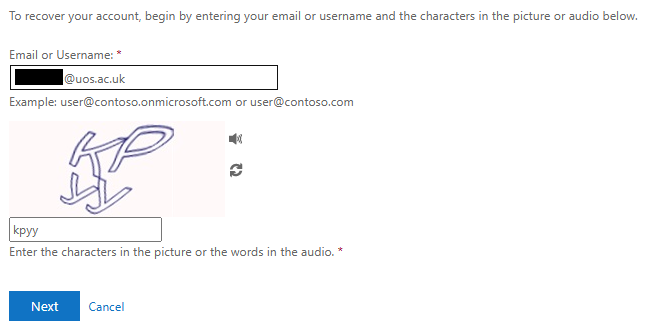
- In the portal, enter your University of Suffolk username and enter the characters in the picture. Your username will end with @uos.ac.uk and can be found in your application acknowledgement email. Click ‘Next’ once you have entered these details.
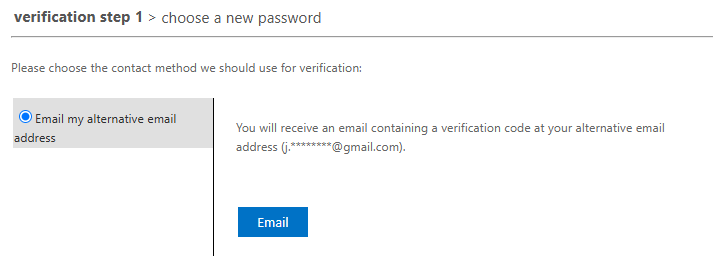
- You will then be prompted for verification. To do this, click on the ‘Email’ button
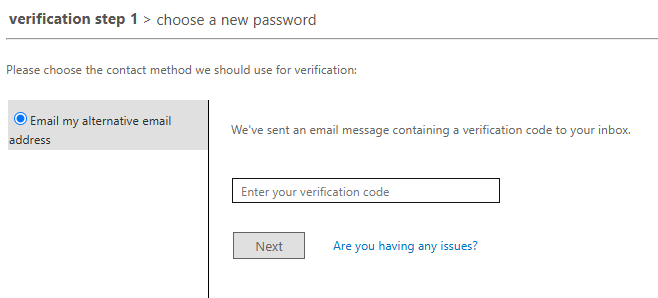
- You will then receive a verification code sent to your personal email (this will be the email address you supplied when applying to the university). If you do not receive an email, please check your junk/spam folder.
- Enter the verification code into the portal and click ‘Next’
- After the verification code is accepted, choose a new password. The password must be a minimum of 12 characters long and it is recommended to use a combination of three random words as a memorable but secure password.
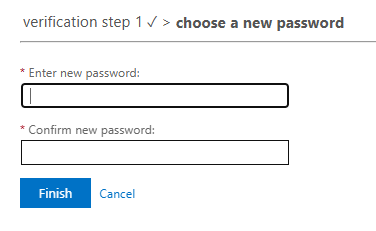
- Click on ‘Finish’. You can now use your username and password to login to Manage My Application.